TPC Setup Guide 🛠️
Welcome freshers! Starting with Competitive Programming (CP) can be a bit overwhelming, especially when you just want to code but your computer says no. 😅 So here is a quick guide to get you up and running. Bear 🐻 with me!
Windows 🪟
- Make sure you have
Terminalapp installed in your system. You can do so by searching for Terminal in windows start menu.
If you don’t have the Terminal app you can install it from the Microsoft Windows Store.
-
Check if you have
g++installed by typing ing++ --version. If it returns a version you are all set and can move on to the VS Code setup. -
If not, no worries. Visit Scoop.sh. Copy the Given commands show right below QuickStart. Same commands are pasted below for reference.
Set-ExecutionPolicy -ExecutionPolicy RemoteSigned -Scope CurrentUser
Invoke-RestMethod -Uri https://get.scoop.sh | Invoke-Expression
Copy the commands given above and paste them in your Terminal.
If you experience any errors try updating your Powershell app from the Microsoft store, Or switching to a better internet connection.
Close and reopen your Terminal.
- On Scoop.sh Search for Mingw. Find the one labelled as mingw in main. Futher paste the given command in your Terminal.
scoop install main/MingwIf you get an error saying “scoop is not a valid command”. Try closing and reopening your Terminal.
- Close you Terminal and reopen it. Type in
g++and voila! You have the mingw compiler installed and running.
MacOS 🍎
-
Open Terminal in MacOS. Check if you have
g++installed by typing ing++ --version. If it returns a version you are all set and can move on to the VS Code setup. -
If not, no worries. Check if you have
brewinstalled by typing inbrew --version. If you have brew Installed you can skip to step 6. -
If not, Head on to Brew.sh and copy the given command and paste it into your terminal.
/bin/bash -c "$(curl -fsSL https://raw.githubusercontent.com/Homebrew/install/HEAD/install.sh)"-
Once you have brew installed, type in
brew install gccin your terminal. -
Once the installation is complete, type in
g++ --versionto check if the installation was successful. If you see a version you are all set.
VS Code 💻
-
Download VS Code from Code.visualstudio.com. Beware Visual Studio Code and Visual Studio are two different programs. Vs code is a code editor while the latter is a full fledged IDE.
-
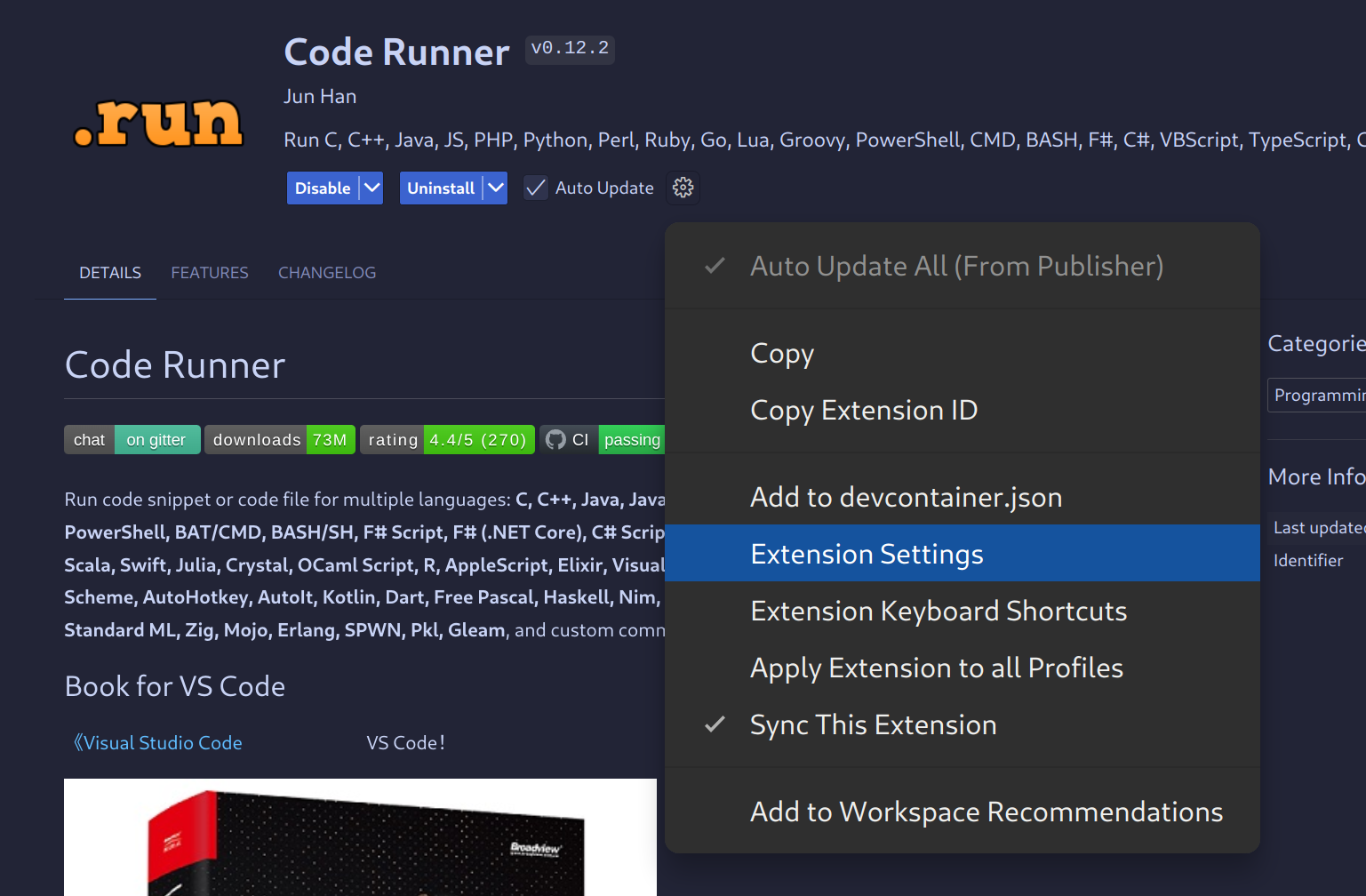
Download the Coderunner extension using the VS code extensions tab.
-
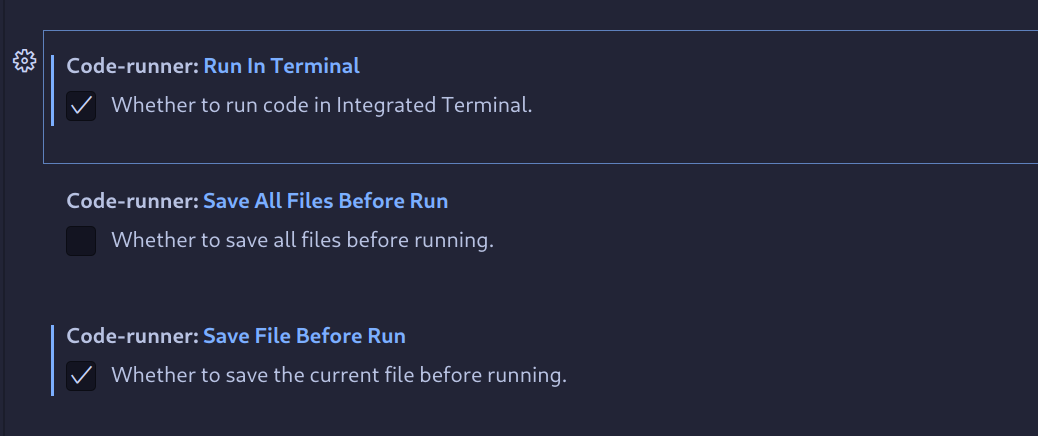
Go to extensions > Coderuner > Coderunner Settings. Further look for Run in Terminal and tick the box. Then go ahead and also tick the box for save file before run.
- Once you have Coderunner downloaded let’s create a new file with Ctrl+n. Input this basic hello world program in C++.
#include <iostream>
using namespace std;

int main() {
    cout << "Hello World!";
    return 0;
}-
Save the file with a
.cppextension, at your desired place. -
Now press
Ctrl+Alt+nto run the code. You should see the output in the terminal below. -
If you see the output you are all set!.
Competitive Programming 🏆
Now let’s setup all the conveniences for Competitive Programming. We want to make it as smooth as possible so you can focus on the logic!
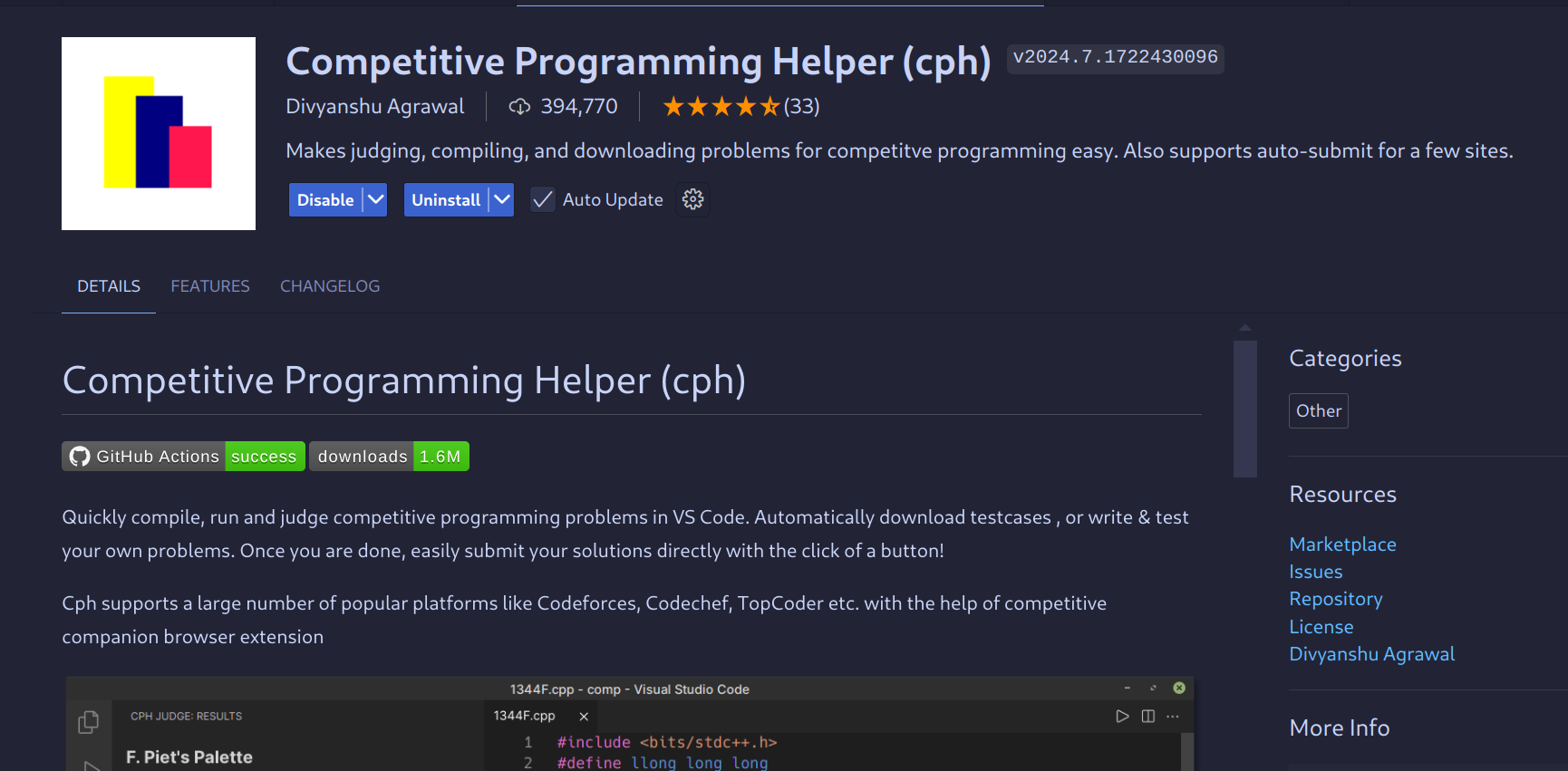
- Download the Competitve Programming Helper extension from the VS Code extensions tab.
- Go to your preferred browser, Firefox/Chrome recommended. Install the Competitive Companion extension.
Firefox link - https://addons.mozilla.org/en-US/firefox/addon/competitive-companion/
Chrome link - https://chromewebstore.google.com/detail/competitive-companion/cjnmckjndlpiamhfimnnjmnckgghkjbl
-
For you convenience create a new folder on your system for all you competitive programming files.
-
Now you are all set to start your competitive programming journey. Good luck!
I hope this guide helps you get started. If you run into any issues, feel free to reach out. See ya! 👋
~ with 💖 by Om.